How to Organize Video Footage: Pick a Model First
Published · Updated · 9 min read · By Long Road Software LLC. AI writes this article and checks it against its sources, the app and the manual; Mike does not review each one. How we write these articles.
Key takeaways
- Choose one organization model before you file anything: project-based, date-based or shot-type-based.
- Most solo creators do best with a hybrid: a date-first project folder on disk, with shot type and camera one level down or as labels.
- Name shoot folders with an ISO date and a short slug, and leave camera original filenames exactly as the camera wrote them.
- Migrate old footage one drive at a time, verify each copy before deleting the original, and relink once per project.
- Write the model and naming rule down in a plain text file on each drive, so a second person can follow it.
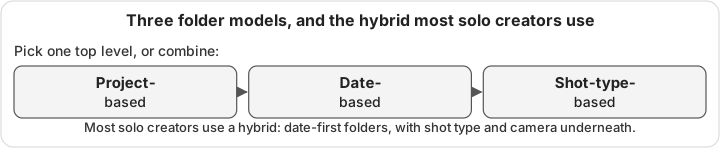
To organize video footage, choose one model first: project-based, date-based or shot-type-based. Count how many jobs you run at once and how often you reuse old clips, then pick. Most solo creators do best with a hybrid: date-first project folders, with shot type and camera underneath. A fixed naming template keeps the model consistent.
This post is about choosing that model, combining models and moving existing footage into it. The drive-level details, such as numbered subfolders, file systems and backups, are in the sibling post on external hard drive organization for video. The card copy itself is covered in checksum verification before erasing a card.
What are the three ways to organize video footage?
Folder models differ in what sits at the top of the tree. A file can live in only one folder, so the top level decides which question is easy to answer. Everything else becomes a search.
- Project-based: one folder per client job, video or series episode. Easy question: “where is everything for this job?”
- Date-based: one folder per shoot day. Easy question: “what did I shoot that week?”
- Shot-type-based: one folder per kind of footage, such as drone, interview or B-roll. Easy question: “where are all my drone shots?”
| Model | Best when | First sign it’s breaking |
|---|---|---|
| Project-based | Few, distinct jobs with a clear start and end | Two projects shoot on the same day and cards get mixed up |
| Date-based | High volume, similar content, fast turnaround | You need every drone clip from six months and must open dozens of folders |
| Shot-type-based | Same gear and recurring formats, such as a weekly show | One shoot spans three cameras and the context lives in your head |
How do you choose between project, date and shot-type folders?
Choosing a model starts with counting jobs, not cameras. Three questions settle it for most people.
- How many jobs overlap? One job at a time points to project folders. Several jobs a week points to dates.
- How often do you reuse old footage? Frequent reuse of stock-style shots favors shot type, or at least shot-type labels.
- Who else opens the drive? An editor thinks in projects, so a project name should appear somewhere in the path.
When project-based breaks down
Project folders fail when projects blur. A personal shoot happens mid-job, or a client asks for a re-edit months later with new footage. You end up with one folder holding cards from two jobs, and nobody can tell them apart.
When date-based breaks down
Dates say nothing about content. Finding “that drone shot of the bridge” means opening folders one by one. Date folders work well for capture, but they need a search tool or labels on top.
When shot-type-based breaks down
Shot-type folders collapse when one shoot mixes cameras that belong on one timeline. You end up stitching a single project together from three folders. Context about why a clip was shot also gets lost.
Can you combine organization models?
Hybrid models are what most working creators end up with. The trick is to give the folder tree one main axis and push the others one level down, or into labels.
The hybrid most solo creators need
A date-first project folder handles both of the first two models in one name. 2026-03-14_brook-wedding sorts in time order, and the slug says what is inside. Shot type and camera then go one level down, as subfolders or as labels in your editing app or catalog.
For a long job with many shoot days, add a parent folder for the job:
2026_brook-wedding/
  2026-03-13_rehearsal/
  2026-03-14_ceremony/
  2026-03-15_brunch/
The year prefix keeps job folders in order too. Each shoot day still has its own dated folder, so cards never mix across days.
Where shot type belongs
Shot type works best as a label or a lower folder, not the top of the tree. Labels let one clip be “drone” and “establishing shot” at once, which a folder can’t do. Your editing app’s keywords, a spreadsheet column or a catalog app can all hold them.
How MediaFlowSwift fits a hybrid
MediaFlowSwift uses a fixed layout rather than your own template. Organize Media files each clip as Destination / Category / Camera / Filename. The destination is any folder you pick for the project, such as a dated shoot folder. The category list starts with shot types like A-roll, B-roll, Interview and Establishing Shot.
So a project pointed at 2026-03-14_brook-wedding ends up with folders like B-roll/FX3/. That is the date-plus-project hybrid at the top, with shot type and camera underneath. If you want a different inner layout, such as the numbered subfolders in the drive post, the Finder or another tool fits better.
What naming convention should video folders use?
A naming convention only works if every part is fixed in order and format. Use ISO dates (YYYY-MM-DD), lowercase slugs with hyphens, and zero-padded numbers. Avoid colons and slashes, which macOS and Windows treat specially.
The template
Copy these patterns and keep them the same on every drive:
Shoot folder:  YYYY-MM-DD_project-slug          2026-03-14_brook-wedding
Card folder:   CAMERA_cardNN                    FX3_card01, DRONE_card02
Export file:   YYYY-MM-DD_project-slug_vNN.mp4  2026-03-14_brook-wedding_v03.mp4
The date comes first, so every drive lists shoots in time order without opening anything. Camera codes stay short and identical across projects: always FX3, never fx3 one week and SonyFX3 the next. The _v03 suffix replaces “final”, because “final_v3_REAL” is how files collide.
What to leave alone
Camera original filenames should stay exactly as the camera wrote them. A name like GX010043.MP4 is how editing apps, offload logs and relink tools find a clip again. Renaming on disk can break the links in your editing projects. Rename folders around the clips, and give names to exports and selects instead.
Card folders also protect the originals’ identity. Two cameras can write identical filenames, but they never collide when each card has its own folder.
How do you migrate footage you’ve already shot?
Migrating old footage is where most systems fail, because people start moving files before the target exists. A slower, staged plan avoids broken projects and lost clips.
Step 1: Take an inventory
List every place video lives: drives, old cards, laptops, phones and cloud folders. The Library of Congress personal video archiving guide starts the same way. Write down each drive’s name, size and rough contents in a text file.
Step 2: Freeze, decide and write it down
Stop erasing cards and stop reorganizing while you plan. Pick your model and write the naming rule in a short text file. The Library of Congress also suggests writing a brief description of your folder structure. Put that file at the root of every drive.
Step 3: Build an empty skeleton
Create the year and shoot folders on the target drive before moving anything. Walk through the tree with real examples in mind. Fix the template now, while the folders are still empty.
Step 4: Move one drive at a time
Move whole folders, never loose clips, and keep each card’s folder intact. A move between two drives is really a copy followed by a delete. Verify each copy with a checksum before you delete the original. The checksum post shows how to do that by hand on a Mac.
Step 5: Relink once per project
Editing apps store where each clip was, so moved clips go offline. Relink each project right after its folder moves, not at the end. Final Cut Pro, for example, matches by filename and by position in the folder structure, according to Apple’s relink guide. Unchanged filenames and folder layouts make relinking much easier.
Step 6: Route leftovers to an inbox
Anything you can’t place goes in a single _INBOX folder at the drive root. Schedule time to triage it. A small, known inbox beats stray clips scattered across drives.
Migrating with MediaFlowSwift
MediaFlowSwift can pull existing footage into a project. File → Create Project From Folder scans a folder and its subfolders and adds every supported media file, as described in Getting Started. The scan copies and moves nothing; the files stay where they are. Organize Media then copies each clip into the Category and Camera layout. By default, each copy is read back from the drive and checked with SHA-256.
Projects whose files you moved in the Finder have repair tools too. Library Moved repoints projects after you copy a whole projects folder to a new drive. Relink Missing Media scans a folder for stray clips. The storage maintenance chapter and the missing footage guide cover both.
Where does the card offload fit in the system?
The offload is the front door of any model. A Finder copy tells you the copy finished, not that every byte arrived intact. Before a card is erased, its copy should be verified with a checksum such as SHA-256, defined in NIST’s Secure Hash Standard.
Offload each card straight into its card folder inside the dated shoot folder. The checksum post covers algorithms, manual checks and what a failed check means.
In MediaFlowSwift, import computes SHA-256 from the card, writes the copy, reads it back from the drive and compares. Importing never deletes anything from the card. Clear Card deletes only clips already organized and verified at the destination. On cards laid out by the camera, such as Sony XAVC cards, Clear Card deletes nothing. It tells you when the card is safe to format in the camera instead.
What changes when a second person needs the footage?
A second person turns your private habits into rules. Your naming convention stops being optional, because an editor can’t ask your memory where things are.
Three rules cover most small teams:
- Keep the rule file on every drive. The text file from Step 2 is now the team’s manual.
- Check drives out. One numbered drive goes to one person at a time. Nothing is erased during a hand-off unless a verified copy exists on the other side.
- Put shared footage where everyone reaches it. A network share every Mac can open beats passing drives around.
MediaFlowSwift can share projects across Macs. The shared database that several Macs use at once is a Studio Pro feature. A single database file also works, one Mac at a time.
Shared projects need a destination every Mac can see. To organize a shared project from any Mac, keep its destination on a network share that every Mac reaches. The setup chapter walks through choosing the share and the database. Crews that need ASC MHL files or copies to several drives in one offload are better served by a dedicated offload tool.
Which Mac tools can enforce your model?
Tools can apply a model for you, but only after you pick one. Judge them on verified copies, how they name and place folders, and how they handle several cameras in one offload.
- OffShoot, the app formerly known as Hedge, does verified offloads to several destinations at once. It runs on macOS and Windows and offers a 10-day trial.
- ShotPut Pro from Imagine Products does verified offloads with PDF reports, and a demo is available.
- Silverstack XT from Pomfort backs up to multiple destinations and keeps a searchable clip library. Pomfort aims it at DITs and data managers on professional sets.
- MediaFlowSwift verifies imports with SHA-256, files clips by category and camera, and numbers archive drives. It runs only on Macs with Apple silicon and macOS 13 or later.
A fuller comparison, with a pass/fail trial checklist, is in evaluating video file management software. If you need a catalog more than a folder model, read digital asset management for video production.
Wrapped projects eventually move to numbered archive drives. The guide to labeling and cataloging archive drives covers that step, and the sibling posts compare NAS storage and LTO, NAS and cloud archives.
If a Category and Camera layout on top of your own dated shoot folders suits you, MediaFlowSwift’s trial runs 14 days and needs no card. The plans are on the pricing section.
Frequently asked questions
Should I organize video footage by project or by date?
Use both in one folder name. Start each shoot folder with the date in YYYY-MM-DD form, then add a short project slug, such as 2026-03-14_brook-wedding. The date keeps shoots in time order, and the slug tells you what is inside without opening it. Pure project folders get messy when two jobs share a day, and pure date folders lose the context.
Should I rename camera files like GX010043.MP4?
No. Leave camera original filenames exactly as the camera wrote them. Editing apps, offload logs and relink tools use those names to find clips again, and renaming on disk can break links in your editing projects. Rename the folders around the clips instead, and give exports and selects descriptive names when you make them.
How do I organize years of old footage I never sorted?
Start with an inventory of every drive, card and computer that holds video. Pick one model, write the naming rule down and build an empty folder skeleton. Then migrate one drive at a time, moving whole folders rather than loose clips. Verify each copy with a checksum before deleting the original, and send anything you can't place yet to an inbox folder.
Do I need checksums for iPhone and GoPro footage, or only for client work?
You need a verified copy of anything you plan to erase. A corrupted personal clip is gone just as permanently as client footage once the card is formatted. A checksum compares every byte of the copy with the original, so treat every card the same way, whoever shot it.
Can a shot-type folder model work for a YouTube channel?
It works when every video uses the same cameras and formats, such as a weekly talking-head show with fixed B-roll. It breaks when one shoot mixes several cameras that you need together on a timeline. Many channels keep shot type as a subfolder or label inside a dated project folder instead of using it as the top level.
Sources
MediaFlowSwift checks every card copy before anything is erased, files footage into the same folders every time, and numbers your archive drives. Try it free for 14 days on a Mac with Apple silicon, no card asked for.