Video Ingest Workflow: When to Erase the Card
Published · 9 min read · By Long Road Software LLC. AI writes this article and checks it against its sources, the app and the manual; Mike does not review each one. How we write these articles.
Key takeaways
- A video ingest workflow is a fixed order: offload the whole card, verify the copy, make a second copy, log it, archive to a numbered drive, then erase.
- A copy only counts once its checksum, read back from the drive, matches the card file; a finished Finder copy doesn’t prove that.
- Two folders on one disk are one copy, so the second copy must live on a different physical drive and be verified too.
- Erase a card only after every file you need has a verified copy, ideally two, and the log says where they are.
- Format the card in the camera that will record on it next, not on the computer, as camera makers such as Canon and Sony recommend.
A video ingest workflow is a fixed routine. Offload the whole card and verify the copy against the card. Make a second verified copy on another drive, and log where everything went. The card is safe to erase only after those steps pass. Then you format it in the camera, not on the computer.
The checklist below runs from card reader to archive shelf, for a solo shooter or a creator handing footage to an editor. Checksums get a short explanation here. For the full story on hashes, checking a copy by hand and failed checks, see Checksum Verification: Prove Your Card Copy Before Erasing.
What does “ingest” mean in a video workflow?
Ingest means getting footage off the card and into a place you can trust and find again. In practice it is three jobs: copy, verify and record. A drag in Finder does the first job only. Finder tells you the copy finished, but it doesn’t compare the copy with the card or note what went where.
Archiving is the fourth job, and it often happens days later. The workflow has to connect today’s card to next year’s shelf, so the log written at ingest matters as much as the copy.
What are the steps of a video ingest workflow?
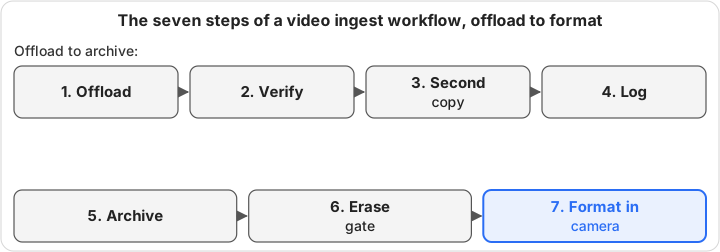
The steps are offload, verify, second copy, log, archive, the erase gate and the in-camera format. The order matters. Erasing comes last and is never a side effect of copying.
| Step | Done when |
|---|---|
| 1. Offload the whole card | Every file is in a dated shoot folder |
| 2. Verify the copy | Each file’s checksum matches the card |
| 3. Make a second copy | A verified copy sits on another drive |
| 4. Log the card | Shoot, camera, card, clip count and drives are written down |
| 5. Archive to a numbered drive | The drive number is on the case and in the log |
| 6. Pass the erase gate | Every file you need has a verified copy |
| 7. Format in the camera | The camera has formatted the empty card |
Step 1: Offload the whole card
Copy the entire card, folder structure included, into one folder per shoot. A name such as 2026-10-24_ClientShoot/A-cam_card01 sorts by date and says which card it was. Cameras write their own layouts, from a GoPro’s DCIM folders to a Sony card’s PRIVATE/M4ROOT, so leave the structure intact.
Watch for files your tool skips. MediaFlowSwift, for example, imports only the video, photo and audio formats it supports. It counts what it leaves out, such as CR3 raw stills, BRAW, R3D or MXF, so copy those yourself. Any app can have gaps like this, so check the card in Finder before you move on.
Step 2: Verify the copy, read back from the drive
A checksum is a short fingerprint calculated from every byte of a file. Hash the card file, hash the copy, and compare. Matching SHA-256 values (NIST FIPS 180-4) mean the bytes are identical. The copy should be read back from the drive, not from the Mac’s memory, or the check proves less than it seems.
A dedicated offload tool does this for you. On the Mac, the built-in shasum command can do it by hand; the checksum post walks through it.
Step 3: Make a second copy on another drive
Copy the verified shoot folder to a second physical drive, and verify that copy too. Some tools write two drives at once, and others make the second copy afterward. Either way works if both copies pass their own check. A second copy made from an unverified first copy can carry the same damage forward.
Step 4: Log what you copied
A log turns a pile of drives into something you can search. One line per card is enough: shoot date, project, camera, card, clip count, total size and the drives that hold it. A spreadsheet works, and so does a text file kept beside the footage. The Library of Congress gives similar advice in Keeping Personal Digital Video: write a short description of your folders and videos.
Step 5: Archive to a numbered drive
Archive drives work best with numbers, not names, because many drives mount as “Untitled” or “T7.” Put the number on the case and in the log. Then finding a clip means looking up the drive, not plugging in every disk on the shelf. External Hard Drive Organization for Video covers folder layouts for those drives.
Step 6: Pass the safe-to-erase gate
The gate is a short checklist, covered in the next section. Miss one item and the card stays full.
Step 7: Format in the camera
Format the empty card in the camera, not on the computer. Canon recommends formatting in the camera when a card was formatted by another camera or a computer. Sony recommends formatting a card in the camera before first use, for stable performance. Remember that formatting erases everything on the card.
When is it safe to erase a memory card after ingest?
A card is safe to erase when four things are true:
- Every file you need from the card is on a drive, including formats your tool skipped.
- Each copy’s checksum, read back from the drive, matches the card file.
- Ideally, a second verified copy sits on a different physical drive.
- The log records the card and the drives that hold it.
One verified copy is the minimum. Two copies on separate drives are safer, because a drive can still fail or get dropped. Until you erase it, the card itself counts as one of your copies. If you have spare cards, keeping a full card for a few extra days is cheap insurance.
A failed check means the card stays full. Copy the file again, then try another reader or cable if it fails twice. The checksum post has a table of common causes.
How many backup copies should you keep after ingest?
The 3-2-1 rule, as Backblaze describes it, means three copies of your data on two different media, with one copy off-site. Backblaze adds that today the copies mainly need to be on two different devices. For a solo shooter, two verified drives at home is a solid start, but it is not yet 3-2-1.
The off-site copy can come later. Take one archive drive to another building, or upload the footage you plan to keep. Raw cards are slow to upload: at a steady 20 Mbps, 512 GB takes about 57 hours.
Selects and finished masters are often a better fit for the cloud than raw cards. Video Archive Storage: LTO vs NAS vs Cloud compares the options. If a NAS holds one of your copies, see NAS Video Storage: How to Choose.
Which Mac ingest tools handle the verify step?
Several Mac apps verify offloads with checksums. They differ in hash type, in whether they write two drives at once, and in what they cost to try. Here is what each vendor’s own page says, checked in October 2026.
| Tool | How it verifies | Two drives at once | Free option |
|---|---|---|---|
| OffShoot (formerly Hedge) | Source and destination verification; ASC MHL in Pro | Yes, many sources to many destinations | 10-day trial; macOS and Windows |
| ShotPut Studio | Copying with verification, reports and an MHL tool | Not stated on that page | 7-day demo |
| Silverstack XT | Checksum verification with ASC MHL | Yes, multiple destinations | 10-day trial |
| habitat flow | xxHash64 on every file; ASC MHL report | Yes, in Pro | Free plan up to 150 GB a week |
| MediaTools | SHA-256 verified ingest | Not stated on that page | Lite is free; macOS and Windows |
| MediaFlowSwift | SHA-256, copy read back from the drive | No; the second copy comes later | 14-day trial, no card |
| Finder | No checksum comparison | No | Built in |
Silverstack XT is built for on-set data managers and DITs. OffShoot also suits crews moving many cards to many drives. habitat flow and MediaTools both have free options that cover a lot of small shoots. If a client asks for an ASC MHL file, pick a tool that writes one.
Where MediaFlowSwift fits, and where it doesn’t
MediaFlowSwift is a Mac app by Long Road Software. Its import computes SHA-256 from the card, writes the copy, reads the whole copy back from the drive and compares. A mismatch is copied once more. If it fails again, the import stops and names the file. Importing never deletes anything from the card. You can preview a clip in the import sheet before you copy.
Organize Media then files each clip as Destination / Category / Camera / Filename and checks it against the import checksum. Clear Card deletes only clips already organized and verified at the destination. It reads each organized copy back in full first. On cards laid out by the camera, such as Sony cards with PRIVATE/M4ROOT, it deletes nothing. It checks the whole card and says when it is safe to format in the camera.
The second copy comes from Archive to USB. That copies the project folder to a drive, reads every file back and compares it by checksum. Archive drives get numbers (USB #0001, USB #0002 and so on), and the app records which project went to which drive. Manage Archive Volumes lists them. How to Keep Two Checked Copies of a Memory Card on a Mac shows the whole sequence.
The limits are real. MediaFlowSwift doesn’t write a card to two drives at once, and it writes no checksum list or MHL file onto the drive. It copies to drives and network shares, not to cloud storage. It runs on Apple silicon Macs with macOS 13 or later today; Windows and Intel Mac versions are coming. For a side-by-side, see MediaFlowSwift vs OffShoot.
How does ingest change when a creator hands off to an editor?
A creator-and-editor pair keeps the same copy rules but adds shared knowledge. Both people need to read the same log. Both need to know which numbered drive holds which shoot. And the editor needs a hand-off file that travels with the footage.
Broadcast and feature crews go further, with dedicated data managers, MHL chains and formal sign-offs. A two-person team rarely needs all of that. Two verified copies, a log and numbered drives cover most small productions.
In MediaFlowSwift, two Macs can see the same projects through the shared database. A database file works on either plan. A database server that several Macs use at once is a Studio Pro feature.
What should a footage hand-off file include?
A footage hand-off file is a plain text or CSV file saved next to the footage. It should answer every question the editor would otherwise ask you:
- The drive number and label, and where the second copy lives
- The shoot date, the offload date and the project name
- Each camera and card, with its folder name
- A clip list with file names and sizes
- A checksum list, so the editor can re-verify the copy on their own Mac
- Known problems, such as a skipped file, a damaged clip or a wrong camera clock
The checksum list is what lets the editor check the drive without calling you. Make one with shasum, as the checksum post shows, or with a tool that writes ASC MHL.
MediaFlowSwift doesn’t write that checksum list. It does write the reading part of the hand-off. Day Summary gives a quick plain-text wrap-up, Generate Dailies builds a by-day report, and Report can save a CSV clip list. NLE Template Export writes a file Final Cut Pro can import, with your categories, ratings and notes. How to Create a Dailies Report and a Hand-Off File explains which to send. For the folder side of the hand-off, see How to Organize Video Footage.
Whatever tool you use, the routine stays the same: copy, verify, copy again, log, archive, then erase. MediaFlowSwift builds the verify, organize and Clear Card steps into that routine; the download page has a 14-day trial, and plans lists what each one includes.
Frequently asked questions
Should I reformat cards in the camera or on the computer?
Format in the camera. Canon recommends formatting a card in the camera when it was formatted by another camera or a computer, and Sony recommends formatting a card in the camera before first use. The camera then writes the folder layout it expects. Do it only after the safe-to-erase checks pass, because formatting erases everything on the card.
Can I just drag the card to my drive in Finder?
You can, but Finder only tells you the copy finished. It doesn't compare a checksum of each card file with the copy on the drive, and it leaves no record of what was copied. If you use Finder, make a checksum list of the card first and check the copy against it before you erase anything.
Are two folders on the same drive two copies?
No. Two folders on one disk are one copy, because a single drive failure, theft or accidental erase takes out both. The second copy has to be on a different physical drive. A drive kept somewhere else, or a cloud copy of the footage you keep, protects you against fire and theft as well.
What should I do if a checksum check fails?
Treat the copy as bad and the card as still full, even if the clip plays. Copy the file again and check it again. If it fails a second time, try another card reader or cable. If the same file fails from two readers, the problem is probably on the card, so keep the card and copy what does verify.
How long should footage stay on the card after ingest?
Until every file you need has a verified copy on a drive, and ideally a second verified copy on another drive, and the log records where they are. Until then, the card is one of your copies. If you have spare cards, leaving a card full for a few extra days costs little and keeps a third copy.
Sources
- The 3-2-1 Backup Strategy, Backblaze
- Secure Hash Standard (FIPS 180-4), NIST
- Formatting a Memory Card, Canon
- Format (Help Guide), Sony
- Keeping Personal Digital Video, Library of Congress
- ASC Media Hash List specification, ASC MITC
- OffShoot, Hedge (checked October 2026)
- ShotPut Studio for Mac, Imagine Products (checked October 2026)
- Silverstack XT, Pomfort (checked October 2026)
- habitat flow (checked October 2026)
- MediaTools, EASY FOCUS s.r.o. (checked October 2026)
MediaFlowSwift checks every card copy before anything is erased, files footage into the same folders every time, and numbers your archive drives. Try it free for 14 days on a Mac with Apple silicon, no card asked for.